Redirecting...
Click here if you are not redirected.
Example
To start Cryosparc, first you need to have a license ID. You need a license ID for every unique instance of Cryosparc you start.
You don't need multiple license ID's if you only have one Cryosparc session running at a time. To obtain a license ID, go to Cryosparc
Go to Open OnDemand and fill in the following fields:
-
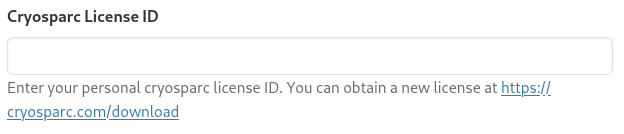
License ID — Enter your License ID.
-
Email address — This will be your CryoSPARC login.

-
Password — Set a password for your user account.

-
Slurm resource requirements — Configure the following:
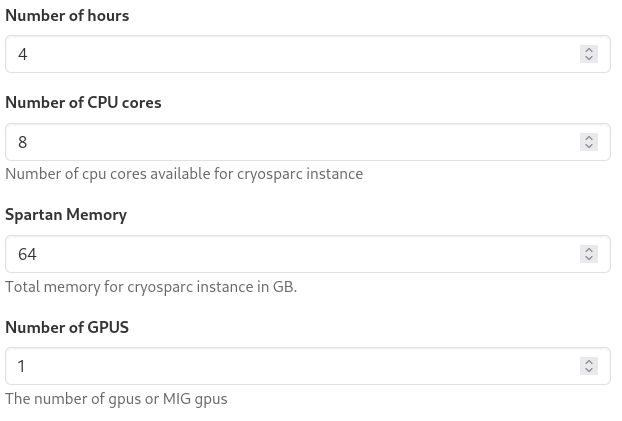
- Hours — Must be long enough for all CryoSPARC jobs to complete.
- CPU cores — 8 is a good starting point.
- RAM (GB) — 64 GB is a good starting point.
Once configured, press Launch. A CryoSPARC master will be launched. You will then be able to submit Cryosparc jobs to the Slurm cluster.
Note
You can only run a single CryoSPARC instance at a time, as all instances share the same database in your home directory. If you need to run multiple instances simultaneously, contact HPC Support.
When the Launch CryoSPARC Desktop - Cluster button appears, click the blue link next to Session ID:
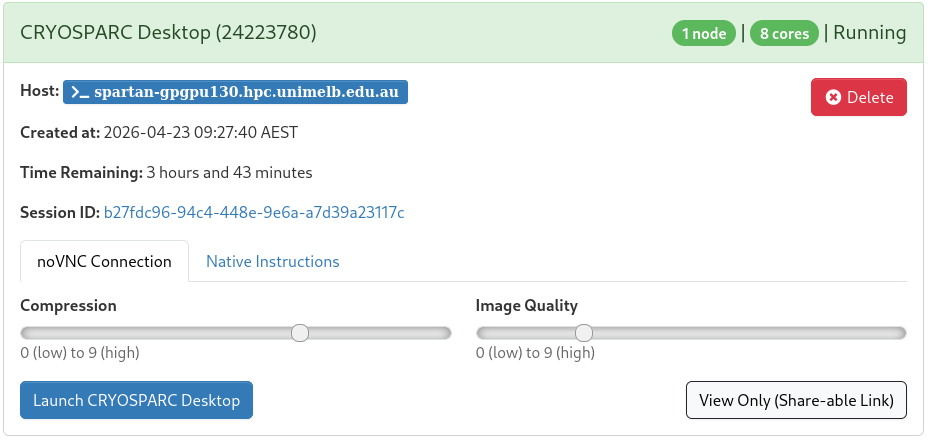
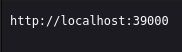
This opens the OnDemand working directory. Click the cryosparc-port.txt file to find the URL you'll use to connect to CryoSPARC from within the job.
Then click My Interactive Sessions → Launch CryoSPARC Desktop - Cluster. A blank Linux desktop will open.
- Launch Firefox via Applications → Internet → Firefox.
- Navigate to the URL from
cryosparc-port.txt(e.g.http://localhost:39000). - Log in with the email address and password you set above.
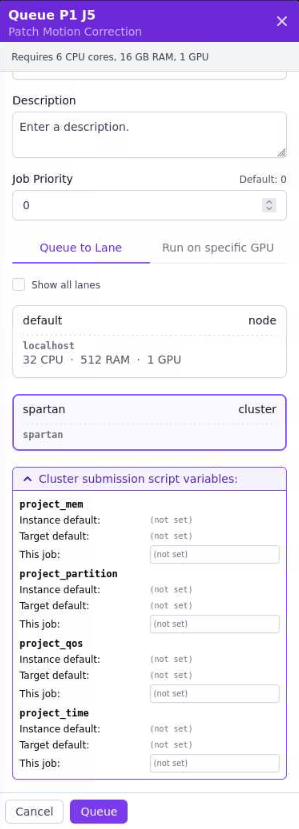
- In Cryosparc, click Queue Job in Patch Motion Correction
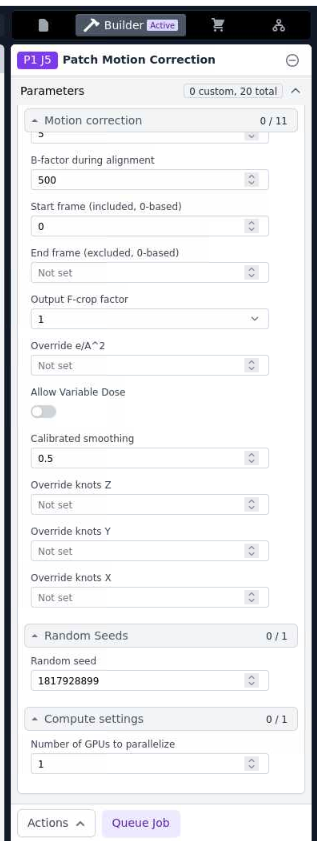
- Then, select spartan and fill project_mem, project_partition, project_qos and project_time, then click Queue